
Blog & News
Disk full, sluggish sessions: three situations where CleanOps restores order
PharWeb
Hits: 3
6 minutes read
One Monday morning, the session server responds badly, a user reports that “everything is slow” and the admin console shows an almost full C: drive. Nobody installed anything unusual: the disk filled up on its own, profile after profile, with temporary files and caches. It is for this kind of situation, met in managed IT services, that we developed CleanOps. Rather than a list of features, here are three concrete cases and how the software deals with them.
Where does all that lost space come from?
Everyone who signs in to a Windows computer has their own profile. In that profile, their browser keeps a page cache, Office and Outlook keep temporary files (including attachments opened from the mailbox), Teams and OneDrive maintain their own caches and logs, File Explorer builds thumbnails, and Windows stores error reports when an application crashes. None of this is abnormal: these are working files that Windows and the applications recreate when needed.
The problem comes from multiplication. On a personal PC, only one profile grows. On a PC shared by several people, or on a session server hosting dozens of profiles, these files add up, and cleaning them one profile at a time is no longer realistic. You need a tool that sees the whole machine.
Case one: the RDS server that fills up by the end of the month
Take a Windows server hosting the Remote Desktop sessions of some forty people. Each of them works in their browser, in Outlook and in Teams all day long. Over the weeks, free space melts away, until the day the disk is too full for sessions to stay smooth.
With CleanOps, the administrator runs an analysis: the software goes through every profile on the machine, even when they are not stored in C:\Users, and shows, category by category and profile by profile, what can be removed. The dashboard highlights the heaviest profiles, which helps to spot the session causing the problem.
One legitimate concern remains: cleaning in the middle of the day, while users are signed in. CleanOps was designed for exactly this. Browser, Office, Teams and other application caches are only cleaned for closed sessions. In open sessions, only temporary files older than 24 hours are removed (adjustable), and a file locked by an application stays in place. Browser history, cookies and passwords are never touched: nobody loses their tabs or their sign-ins.
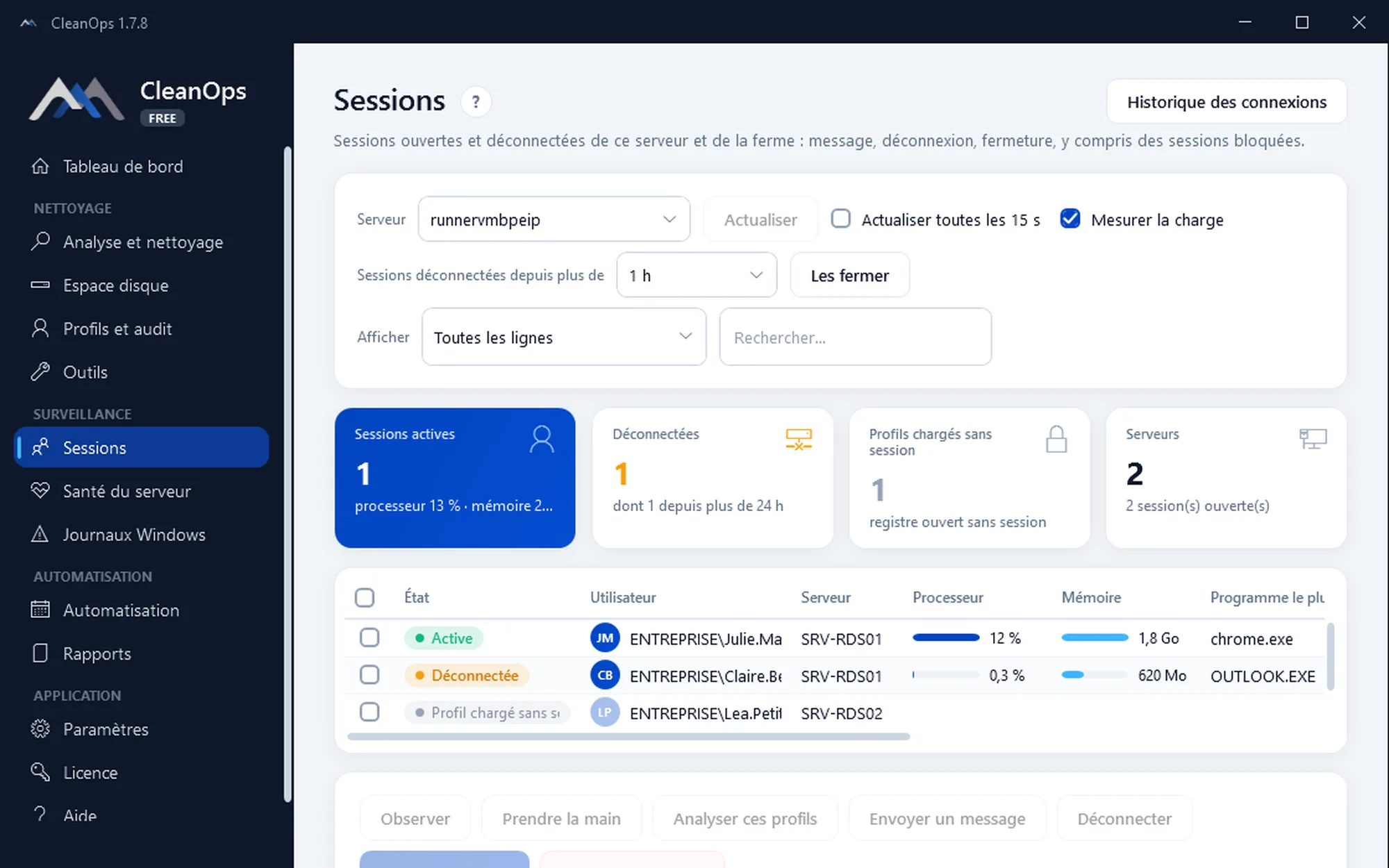
In the Pro edition, this cleanup no longer even needs to be started by hand. It can run every day or every week, trigger when each session signs out to clean the profile as soon as the user disconnects, or start automatically when a disk drops below a free-space threshold. On a farm of several RDS servers, the other servers are handled from the same console.
Case two: the front desk PC everyone uses
In some organisations, a computer is shared: the front desk PC, the meeting room PC, or a workshop PC where each team signs in with its own account. After a few months, it holds a dozen profiles, some of them belonging to people who left long ago, and it starts up more and more slowly.
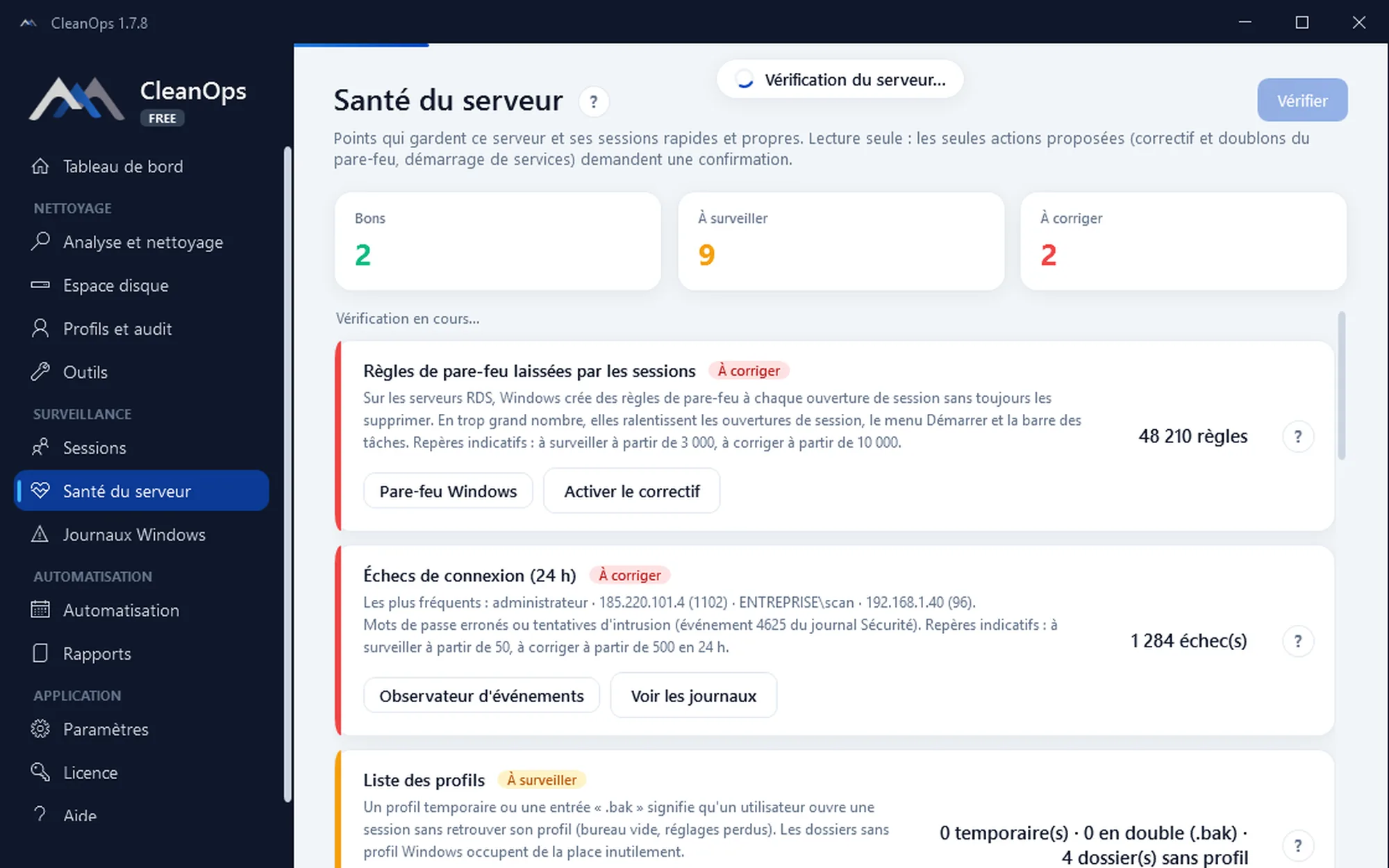
Here, CleanOps is first used to understand. The Disk space view shows the folder tree, the largest files, their types and their age: you can see whether the space is taken by caches, forgotten downloads or an unexpected folder. The Computer health screen gathers points that can explain a sluggish machine: pending updates, a restart Windows has been asking for for days, repeated crashes. Each point links to the matching Windows tool to go further.
Then comes the clean-up. The Free edition cleans temporary files, browsers, Office and Outlook, thumbnails, GPU caches and error reports across all profiles. With the Pro edition, you can also audit the profiles themselves: CleanOps finds orphaned, ghost or unusually heavy profiles, with or without Active Directory, and lets you delete the ones no longer in use, manually or on a schedule. Startup programs and unwanted software are listed too, and anything removed goes through a quarantine or an export: if you make a mistake, everything can be restored from the Restore tab.
Case three: “it’s slow”, but the disk isn’t to blame
Sometimes the disk is not the cause. A user complains about a slowdown, free space is fine, and yet the session is sluggish. On a shared server, the cause can be a single program using too much, in someone else’s session.
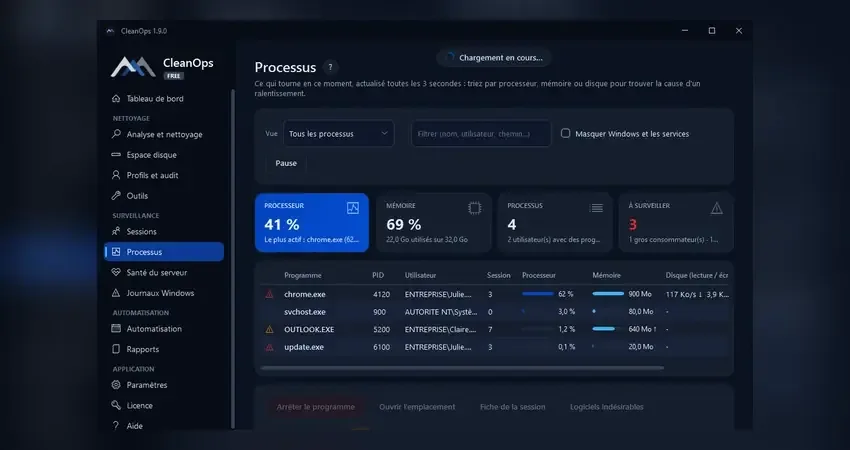
The CleanOps Processes screen shows what is running right now, refreshed every three seconds, with the CPU, memory and disk used by each program. You can group by program or by user, which shows at a glance which session is weighing on the machine. CleanOps flags programs to watch on its own: one using more than 50% of the CPU for more than a minute, one whose memory keeps growing (a likely memory leak), or an unsigned program started from a user or temporary folder, which deserves a check.
This view is available in the Free edition. In Pro, the administrator can go all the way: stop the program at fault (after confirmation, since unsaved work would be lost), open its location, show the details of the session concerned or export the list to CSV.
No longer having to think about it
The best clean-up is the one you no longer have to start. In the Pro edition, CleanOps keeps the administrator informed without them having to sign in: a monthly report, health monitoring daily or every hour, an alert when a disk gets too full. These messages go out by e-mail, with a layout that reads well in Outlook, Gmail, Apple Mail or Thunderbird and encrypted sending as soon as a password is set, or straight to Teams, Slack, Mattermost, Discord or a webhook. For service providers, a PDF health report can be handed to the client.
All these automations are Windows scheduled tasks: nothing runs permanently, CleanOps only runs for the duration of the task.
Free or Pro: where to start?
The Free edition costs nothing. It already covers the essentials to take stock of a machine: manual cleanup of all profiles, the dashboard and reports, disk space, sessions, machine health and processes. It is the right starting point to measure what a PC or a server is hiding.
The Pro edition is for those who look after machines over time: automation, alerts, cleanup of applications and Windows Update, profile audit and deletion, RDS farm and admin tools. The licence covers one computer for one year: €39 excl. VAT for a Windows 10 or 11 PC, €129 excl. VAT for a server. When the licence ends, CleanOps simply returns to the Free edition.
CleanOps runs on Windows 10 and 11 and on Windows Server 2016 to 2025 (64-bit), in English, French, German and Spanish. The detailed comparison and the FAQ are on the CleanOps page, and the software can be downloaded from the shop.
Would you rather hand it over? PharWeb installs and configures CleanOps on your PCs and servers, or takes care of the managed IT of your Windows fleet and RDS sessions.