
Blog & News
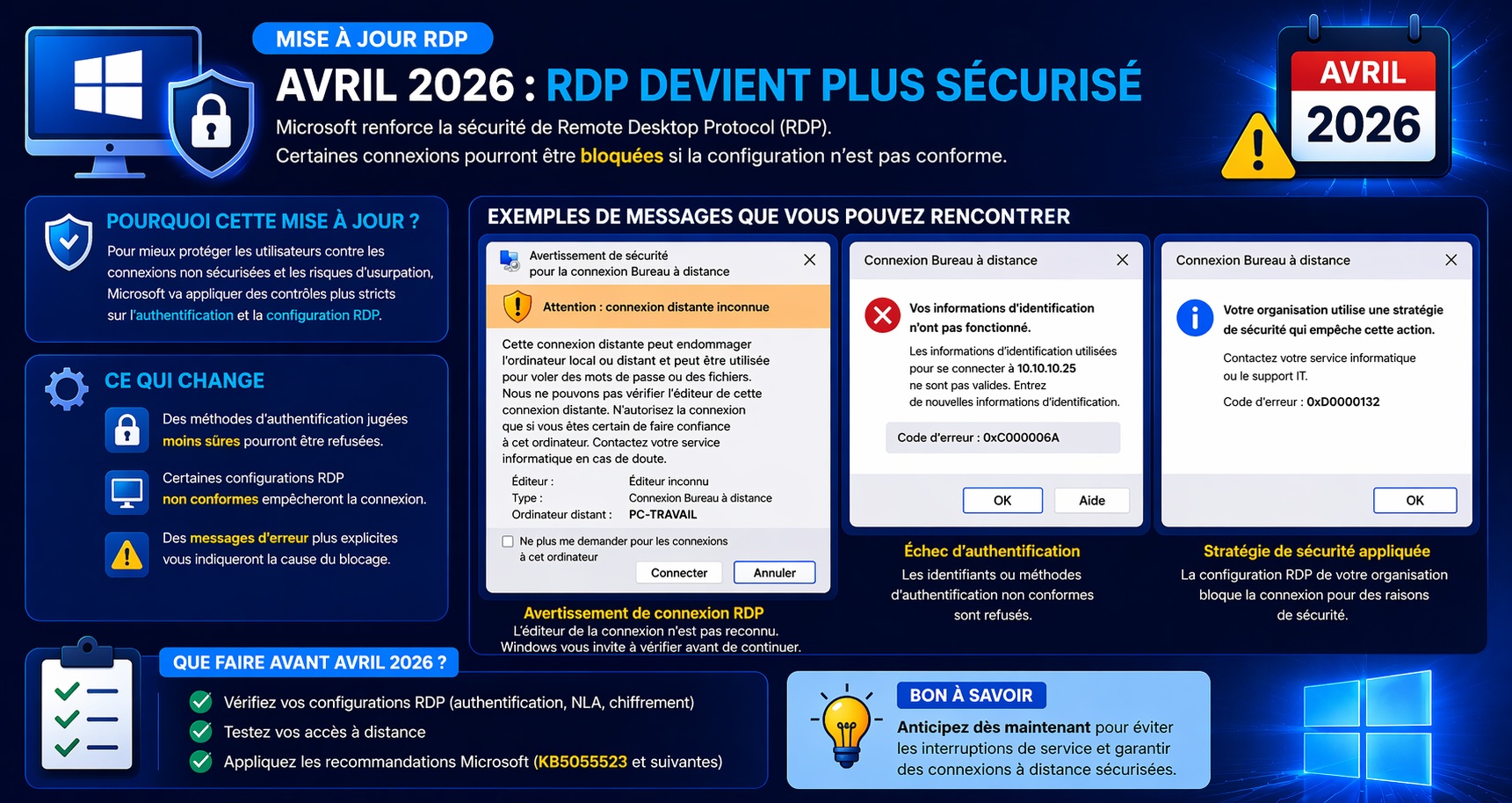
RDP and the April 2026 Windows update
PharWeb
Hits: 2
10 minutes read
Since 14 April 2026, many system administrators have faced a flood of reports: when opening their usual .rdp files, a warning window appears with the message "Unknown publisher". This behaviour is not a bug. It is intentional and results from Microsoft's April 2026 Patch Tuesday, which introduces new protection mechanisms against RDP phishing through vulnerability CVE-2026-26151.
Contents
- Context: CVE-2026-26151 and the April 2026 Patch Tuesday
- The two types of warning
- Step 1 — Check the server's RDP certificate
- Step 2 — Create a suitable new certificate
- Step 3 — Bind the certificate to the RDP role
- Step 4 — Export the public certificate
- Step 5 — Prepare and sign the .rdp files
- Step 6 — Deployment script for client computers
- Important technical points
- Summary of renewal dates
01 — Context: CVE-2026-26151 and the April 2026 Patch Tuesday
Since 14 April 2026, many system administrators have faced a flood of reports: when opening their usual .rdp files, a warning window appears with the message "Unknown publisher".
This behaviour is not a bug. It is intentional and results from Microsoft's April 2026 Patch Tuesday, which introduces new protection mechanisms against RDP phishing through vulnerability CVE-2026-26151.
⚠ Key point
This change in behaviour happens on the client side (Windows 10/11 computers), not on the server side. All RDS servers are affected whatever their version (2016, 2019, 2022, 2025), as soon as the clients have installed the update.
The updates concerned
| System | Update | Build |
|---|---|---|
| Windows 11 25H2 / 24H2 | KB5083769 |
26200.8246 / 26100.8246 |
| Windows 11 23H2 | KB5082052 |
— |
| Windows 10 | KB5082200 |
— |
Why Microsoft made this change
CVE-2026-26151 is a spoofing vulnerability in Remote Desktop, identified by the UK National Cyber Security Centre (NCSC), with a CVSS v3 score of 7.1 (Important). Microsoft classified it as "exploitation more likely".
The attack vector is simple: malicious actors send booby-trapped .rdp files by email. When a victim opens the file, their computer connects silently to a server controlled by the attacker, potentially sharing local drives, clipboard and credentials.

First warning shown when a .rdp file is opened for the first time after the April 2026 update — Source: IT-Connect
02 — The two types of warning
Unsigned .rdp file — red banner
When an .rdp file is not digitally signed, Windows shows a red banner labelled "Unknown remote connection" and shows "Unknown publisher" in the Publisher field. The "Don't ask me again" box does not work in this case.

New RDP connection dialog with an unsigned file — red "Unknown remote connection" banner — Source: IT-Connect
Signed .rdp file — orange banner
When an .rdp file is digitally signed, the banner turns orange with the label "Verify the publisher of this remote connection". The publisher's name is shown and clickable. A "Remember my choices for remote connections from this publisher" box becomes available.

Dialog with a signed .rdp file — the publisher is verified and the "Remember my choices" option is available — Source: IT-Connect
ℹ Complete solution
To remove the warning for good: (1) a valid certificate on the server side, (2) digitally signed .rdp files, (3) the certificate imported into the trusted authorities of the client computers, and optionally (4) the registry key to disable the dialog.
03 — Step 1 — Check the server's RDP certificate
On the server (PowerShell as administrator):
Points to check in the result:
- Is the certificate still valid (
NotAfter)? - Does the
Subject(CN) match the name or IP used in the.rdp? - Is it self-signed (
Issuer=Subject)?
⚠ Warning
If the connection uses an IP address but the certificate is issued for a DNS name, the certificate will never match — the warning will be permanent. You must include the IP in the certificate's SAN or use the FQDN in the .rdp.
04 — Step 2 — Create a suitable new certificate
✓ Recommendation
Create a certificate valid for 10 years to avoid repeating the operation and redeploying to every computer regularly.
Identify the full address value in the .rdp file
Open the .rdp file in a text editor and find:
| Value in full address | DnsName parameter to use |
|---|---|
| FQDN (server.mydomain.com) | "server.mydomain.com", "SHORT_NAME" |
| Public IP (203.0.113.10) | "server.mydomain.com", "SHORT_NAME", "203.0.113.10" |
| NetBIOS name only | "SERVER_NAME" |
Create the certificate
ℹ Windows Server 2019 note
The -IPAddress parameter is not available on Windows Server 2019. To include an IP in the SAN, pass it as a value in -DnsName — this works with the Windows RDP client.
05 — Step 3 — Bind the certificate to the RDP role
✓ Good to know
There is no need to restart the TermService service. The new certificate is used for new connections without interrupting active sessions.
06 — Step 4 — Export the public certificate
This .cer file (public key only, without the private key) must be distributed to client computers so that they trust the server's certificate.
07 — Step 5 — Prepare and sign the .rdp files
⚠ Critical point
The full address:s: line is mandatory in the file for rdpsign.exe to work. Without it, the file will be considered corrupt after signing. The alternate full address line alone is not enough.
Recommended minimal structure
For a multi-monitor file, replace use multimon:i:0 with use multimon:i:1.
Sign the files
A correctly signed .rdp file will contain the lines signscope:s: and signature:s: at the end.
08 — Step 6 — Deployment script for client computers
The script below handles the entire client-side deployment, suited to environments without Active Directory with a network share (NAS or file server) as the distribution source.
ℹ With Active Directory
In an AD environment, distribute the certificate via GPO (Computer Configuration → Trusted Root Certification Authorities) and the registry key via GPO. Signed .rdp files can be distributed via the logon scripts folder or a SYSVOL share.
Values to adapt
| Value to replace | With |
|---|---|
\\SERVER\SHARE\ |
The UNC path of your network share |
rdp-cert.cer |
The name of your exported certificate file |
SERVER_NAME |
The term contained in the name of your RDP files |
09 — Important technical points
Why the script copies itself to %TEMP% before UAC elevation
Windows blocks running .bat scripts from a UNC path in elevated mode. The script copies itself locally to %TEMP% before relaunching as administrator — which gets around this restriction.
Why AllowInsecureGuestAuth is needed
Since Windows 10 1709, Microsoft blocks anonymous SMB connections from an elevated context. The AllowInsecureGuestAuth = 1 key temporarily allows this access. It is closed again (= 0) at the end of the script.
Why capture the user via WMI rather than %USERNAME%
After UAC elevation, %USERNAME% returns the administrator account, not the user actually logged on. (Get-WmiObject Win32_ComputerSystem).UserName returns the user of the active session, regardless of the account used for elevation.
CVE-2026-26151 registry key
⚠ Security
Do not apply this key on computers exposed to .rdp files received from external sources (email, downloads). It removes the protection Microsoft put in place against CVE-2026-26151.
10 — Summary of renewal dates
| Item | Recommended duration | Action when due |
|---|---|---|
| Self-signed RDP certificate | 10 years | Regenerate, re-sign the .rdp files, redeploy the .cer |
| Signed .rdp files | Certificate duration | Re-sign with the new certificate |
| Client registry key | Permanent | No action required |
| Certificate imported on clients | Certificate duration | Redeploy the deployment script |
✓ Conclusion
The procedure described in this article deals with the problem cleanly and durably, with a single deployment on client computers valid for 10 years. It applies to environments with Active Directory (via GPO) as well as without AD, simply by adapting the distribution method.
Sources
- →Microsoft Learn — Understanding security warnings when opening Remote Desktop (RDP) files
- →BleepingComputer — Microsoft adds Windows protections for malicious Remote Desktop files
- →Tenable — Microsoft's April 2026 Patch Tuesday Addresses 163 CVEs
- →Neowin — Microsoft details Windows 11 KB5083769 Remote Desktop changes
- →Help Net Security — Windows is getting stronger RDP file protections to fight phishing attacks
- →Microsoft MSRC — CVE-2026-26151